Ostranauts Keybinds
Default keyboard and mouse bindings for camera, time, inventory, QAB, and flight
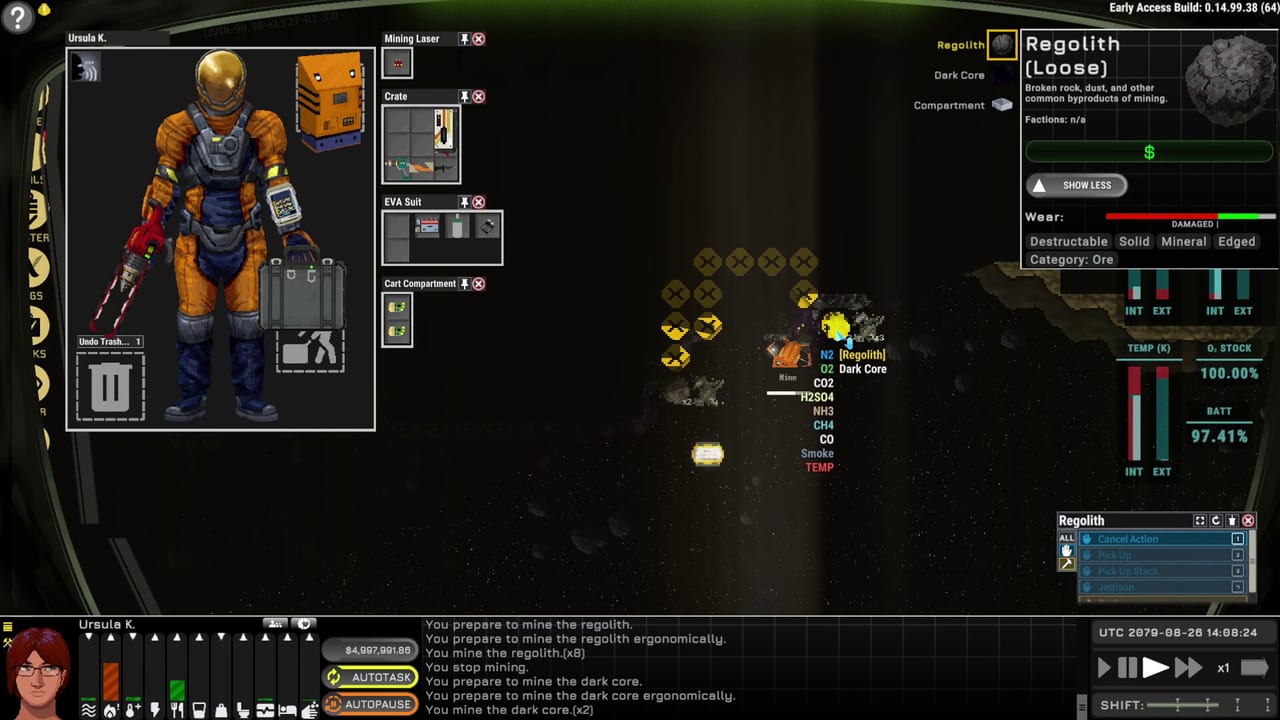
Ostranauts assumes you can pause, pan, and queue actions without hunting through menus. Blue Bottle Games documents most defaults in the in-game readme; this page collects the bindings captains use daily after the August 2026 1.0 Steam launch. Official interface language remains English only, and there is no multiplayer mode — every mistimed unpause is yours alone.
Rebinding is available in Options, but the tables below match factory defaults. Cross-read the Controls hub for how these inputs fit the broader UI, and the nav console reference when WASD controls the ship instead of the camera.
Camera, time, and session
On foot or while managing a stationary ship, camera movement is the highest-frequency input loop.
| Key | Action |
|---|---|
| W A S D | Pan camera up, left, down, right |
| Shift + WASD | Pan camera faster |
| Mouse wheel | Zoom in and out |
| Home | Center camera on active character |
| Space | Pause / unpause simulation |
| [ | Decrease simulation speed |
| ] | Increase simulation speed |
| Esc | Close topmost UI; open save/quit menu if none open |
| + / - | Alternate zoom in and out |
Space is your emergency brake. Before you confirm a torch burn, accept a docking clamp, or walk through a questionable airlock, pause. The six-hour shift clock still matters while paused — mortgage and dock fees accrue on shift boundaries, not on unpaused minutes — but pause prevents the instant deaths that come from mis-clicks.
Super Fast Forward (SFF) lives in the time UI rather than a single key. Use it for sleep and long transits, not for precision building. For economic timing around shift end, see Ship Mortgage and the mortgage shift planner.
Mouse, selection, and inventory
| Input | Action |
|---|---|
| Left click | Walk captain to tile; select drafted AI |
| Right click | Open context / QAB menu on tile |
| Left drag | Paint with selected item; scroll long lists |
| I | Toggle inventory (character + nearby ground) |
| R | Rotate held item clockwise |
| Shift + click (inventory) | Auto-move item to best slot |
Clicking your portrait bottom-left also opens inventory and can recenter the camera when Home feels unreliable with multiple crew. The inventory paper doll shows valid equipment slots; yellow dots mark where a held object can mount.
Item rotation with R matters during Install placement and manual haul sorting. If you live out of a cramped coffin starter, efficient rotation saves minutes per salvage run — minutes that translate into permit money.
Quick Action Bar (QAB)
When an object or NPC is selected, the QAB lists contextual actions.
| Key | Action |
|---|---|
| 1 – 4 | Trigger first four QAB actions |
| 5 | Scroll QAB list up |
| 6 | Refresh QAB action list |
| 7 | Expand QAB to show all actions |
Train 1–4 for repeat workflows: toggle power, Use on nav console, Restore on damaged equipment, Inventory on a rack. Color coding helps — yellow hammer icons mark build and repair actions tied to Orders queues.
PDA and utility hotkeys
From the PDA Home menu or direct shortcuts where noted:
| Key | Action |
|---|---|
| N | Zones app — haul destinations and NPC restrictions |
| X | Cycle Vizor augmented-reality modes |
| L | Vizor settings |
Goals, Roster, Tasks, Install, and Orders are primarily button-driven from the left PDA strip or Home menu, but N for Zones is worth memorizing before you queue mass haul jobs across a expanded hull. Zone mistakes cause AI to drop loot in sell piles or forbidden rooms.
Flight and nav console overrides
At the nav console, WASD semantics change:
| Key | Action (flight mode) |
|---|---|
| W A S D | Translate ship (forward, strafe left, backward, strafe right) |
| Q / E | Rotate ship counter-clockwise / clockwise |
| Mouse | Select map targets, click COMMS buttons |
Hold the opposite rotation key to cancel spin. Match relative velocity (VREL) before clamp engage — see How to Fly and Dock for approach geometry and Nav Console for COMMS undock clearance.
Torch and fusion drives add reactor panel switches beyond keyboard defaults; manual thrust uses nav throttle sliders and cycle controls documented in Fusion Torch Drive.
Ship building and debug keys
Most captains can ignore debug bindings, but builders should know:
| Key | Action |
|---|---|
| R | Rotate install placeholder (also while holding items) |
| Delete | Remove item under cursor (debug contexts) |
| Period (.) | Rotate ship clockwise (debug) |
| Arrow keys | Debug ship tilt visualization |
Legitimate construction relies on Install and Orders menus rather than debug deletes. For large refits — towing brace clearance, reactor floor cutouts — read Ship Building before you uninstall walls you needed for airtightness.
Practical learning order
New players should:
- Pause with Space before every first-time interaction
- Keep Home and I muscle memory for inventory loops during EVA prep
- Bind mentally 1–4 to power, use, repair, inventory on your starter ship
- Re-read flight WASD in How to Fly and Dock before leaving OKLG
Returning Early Access veterans: confirm bracket keys still step speed as expected after patches listed on Updates. If you hire crew, Hire Crew explains AI pause toggles separate from global Space pause.
Related pages
- Controls hub — overview of camera, nav, and PDA layers
- Nav Console — COMMS, clamps, station keeping
- PDA and Orders — automation queues and zones
- Getting Started — first hour at OKLG
- Tools hub — printable checklists that assume these bindings
Frequently Asked Questions
Quick answers for spacers who want to stay alive.
What key pauses Ostranauts?
Space toggles pause and unpause by default. Pause before undock clearance, torch ignition, or walking into an unknown corridor.
How do I recenter the camera on my character?
Press Home to center on the active captain. You can also click the character portrait in the bottom-left panel if follow mode misbehaves with multiple crew.
Do WASD keys always pan the camera?
On foot, WASD pans. At the nav console in flight mode, WASD translates the ship and Q/E rotates. Check the nav console page when switching modes.